
Fixing Google indexing issues in Bangladesh needs three things: clean technical SEO, strong content quality, and the right steps in Google Search Console (GSC). Start with GSC → Indexing → Pages to find the exact “Not indexed” reason, then use URL Inspection to confirm noindex tags, robots.txt blocks, canonical mismatch, redirects, and soft 404 or thin content signals.
Next, fix the root cause, submit an updated XML sitemap with only indexable URLs, improve internal linking from strong pages, and request indexing for the most important URLs. This guide shows how to fix indexing issues in Google Search Console step by step, and many new sites in Bangladesh see updates within 24–72 hours after fixes.
Key Takeaways
- First, check the Page indexing status, then fix that exact reason
- Next, use URL Inspection before you request indexing
- Then remove blocks like robots.txt, noindex, redirects, or access errors
- After that, strengthen signals with internal links and unique, intent-matched content
- Finally, keep your sitemap clean with indexable URLs only and monitor updates over time
Crawl vs Index: What’s the Difference in Google?
Crawling means Googlebot visits your URL. Indexing means Google adds that URL to Google Search, so it can show in the results. So, Google can crawl a page and still not index it.
In Google Search Console, labels like Submitted URL not indexed, Discovered – currently not indexed, and Crawled – currently not indexed tell you what to fix next. Remember: “Indexing works like a decision, not a button.” So, remove blockers, fix canonicals or redirects, and support the page with internal links and unique content.
Check Indexing Status in Google Search Console (GSC)
First, open the Pages report: Search Console → Indexing → Pages. Then filter Not indexed, click the reason, and open one URL. Next, paste that same URL into the URL Inspection tool (top search bar) to see what Google sees.
Now check these items in URL Inspection:
- Page indexing status
- Crawl allowed?
- User-declared canonical
- Google-selected canonical
- Last crawl time (if shown)
After that, open Indexing → Sitemaps to confirm your sitemap is submitted and updated. Finally, if you see a sudden big drop, quickly check Security issues and Manual actions. Also, if you use both Domain and URL-prefix properties, inspect the correct property first to avoid mixed signals.
Fix Indexing Fast: 10-Minute GSC Checklist
When you need fast clarity, use this quick checklist to fix indexing issues in Google Search Console without guessing.

Do this first (in order)
- Open URL Inspection and paste the exact URL (remove tracking parameters).
- Read the Page indexing status reason.
- Compare the user-declared canonical vs Google-selected canonical.
- Confirm the page returns 200 OK (not a redirect).
- Check for noindex (meta robots or X-Robots-Tag).
- Check robots.txt for blocked paths.
- Review Indexing → Pages to see if many URLs share the same issue.
- Open Indexing → Sitemaps and confirm it lists only canonical, indexable URLs.
Some URLs (tags, filters, test pages) do not need indexing. If you want a quick expert check, our SEO audit in Bangladesh can help you find the exact indexing blocker fast.
GSC “Not Indexed” Reasons: Fix Table (Fast)
Use this table to act fast. First, match the exact status in the Pages report, and then follow the next step. After that, confirm the result in URL Inspection.
| GSC status/reason | What it usually means | What to do next | How to confirm |
| Submitted URL not indexed | Weak signals, duplicate/canonical mismatch, or soft 404 | Fix canonical, add internal links, improve content, then request indexing | URL Inspection shows indexable + correct canonical |
| Discovered – currently not indexed | Google found the URL, but delayed crawling | Add internal links, refresh sitemap, reduce low-value URLs | Pages bucket changes after recrawl |
| Crawled – currently not indexed | Google crawled the page but skipped indexing | Improve depth/uniqueness, remove duplicates, fix soft 404 cues | URL Inspection shows stable crawl + stronger page |
| Blocked by robots.txt | robots.txt blocks crawling | Allow the path and retest | URL Inspection shows crawl allowed |
| Excluded by ‘noindex’ tag | Noindex blocks indexing | Remove noindex from pages you want indexed | URL Inspection shows indexing allowed |
| Duplicate/canonical issues | Google picks a different canonical, or you did not set one | Align canonicals, internal links, redirects, and sitemap | Google-selected canonical matches target |
| Page with redirect | URL redirects to another page | Use the final URL in links and the sitemap | Inspect final URL; returns 200 OK |
| Soft 404 / 5xx | Thin “empty” page or server errors | Add real content or fix hosting/server issues | Pages’ reason changes; live test works |
How to Fix “Not Indexed” in Google Search Console
These three labels in Google Search Console tell you what to do next. So, match the label first, then apply the right fix in the right order.
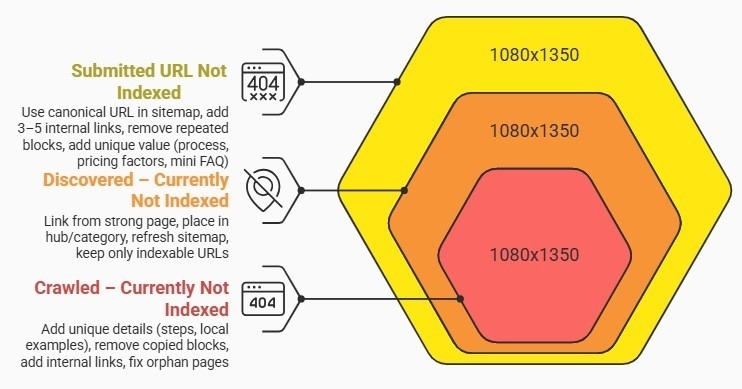
Submitted URL Not Indexed: How to Fix It
You submitted the URL in a sitemap, but Google still did not index it. So, fix canonicals, internal links, and duplicate signals first.
- Keep one canonical URL in the sitemap
- Add 3–5 internal links to the page
- Remove repeated sections across similar pages
- Add unique value (process, pricing factors, short FAQs), then request indexing
Discovered – Currently Not Indexed: How to Fix It
Google found the URL, but it has not crawled it yet. So, improve discovery and reduce crawl waste.
- Link from a strong page (homepage or top post)
- Place the page inside a clear hub/category
- Refresh the sitemap and keep only indexable URLs
Crawled – Currently Not Indexed: How to Fix It
Google crawled the page, yet it skipped indexing. This often happens with thin content, near-duplicates, or weak intent matches.
Fix it fast:
- Add unique details (steps, examples, local context)
- Remove copied blocks that repeat sitewide
- Add internal links and fix orphan pages
Fix robots.txt and noindex in Google Search Console
Technical blocks can stop indexing fast. So, check these early if you want to fix indexing issues in Google Search Console without wasting time.
How to Fix robots.txt Blocking
robots.txt controls crawling. If you block a folder or URL, Googlebot may not reach your page.
Quick checks:
- Look for blocked folders like /services/, /blog/, /product/, or /category/
- Avoid blocking important CSS/JS files
- Keep staging blocked, but keep the live site open
How to Fix “noindex” in Google Search Console

noindex tells Google not to index the page. So, check the most common places:
- WordPress “Discourage search engines” setting
- SEO plugin page settings
- Server header: X-Robots-Tag: noindex
After you remove noindex, re-test the URL in URL Inspection.
How to Fix Canonical and Redirect Issues
Canonicals help Google pick the main URL, while redirects move users and bots to the final URL. However, mixed signals can confuse indexing.
- Use one URL version site-wide (HTTPS, www/non-www, trailing slash)
- Set rel=canonical to the preferred URL
- Point internal links and the XML sitemap to the canonical URL
- Remove redirect chains and link directly to the final 200 OK URL
Improve Internal Links & Fix Thin Content for Indexing
Even when tech settings look fine, Google still needs strong signals. So, improve these site signals to help indexing move faster.
Internal links and orphan pages
Internal links help Google discover pages and understand importance. So, if a page sits alone, it often struggles.
Quick fixes:
- Add the page to a hub page or main navigation
- Link to it from 2–3 related pages
- Keep it within a few clicks from the homepage
Duplicate content (Bangla + English)
Bangla and English pages can compete if both versions look too similar. So, keep each version unique and consistent in language. Bangladesh example: “Digital Marketing Agency in Dhaka” and “Digital Marketing Agency in Chattogram” should not use the same text. Add different local proof and different FAQs, then keep canonicals clean.
Thin content and soft 404 signals
Thin pages often trigger “crawled not indexed” or soft 404 patterns. So, add value that matches search intent. If you want real examples of what worked, see our SEO case studies for indexing and growth results.
- Short process section
- Clear service scope and limits
- Pricing factors (no fixed numbers needed)
- Mini FAQ
- Local examples and outcomes
Page speed and server errors (5xx)
Slow pages and server errors can block crawling. So, if you see 5xx errors in GSC, fix hosting or app errors first, then re-test in URL Inspection.
Request Indexing in GSC: Validate Fix Steps
Request indexing works best after you fix the real cause. So, follow this order to avoid wasted requests.
Correct workflow
- Fix the blocker or weak signal on the site
- Run Test Live URL in URL Inspection
- Confirm crawl allowed and the right canonical
- Click Request indexing one time
- Then use Validate fix in the Pages report (for issue groups)
If indexing still does not move, check for a non-canonical URL, leftover noindex, a robots.txt block, a redirect to a different final URL, or 5xx server errors. On newer sites in Bangladesh, you often see changes within 24–72 hours after fixes, and then the reports update over time.
Monthly GSC Indexing Checklist to Avoid Issues
If you want to fix indexing issues in Google Search Console long-term, a short monthly routine helps you catch problems early.
Monthly GSC routine (15–20 minutes)
- Open Indexing → Pages and review the top Not indexed reasons
- Group issues by folder or URL type, then fix the pattern
- Check Indexing → Sitemaps and keep only indexable, high-quality URLs
- Inspect 5 sample URLs and confirm that the Google-selected canonical matches your target
- Track changes weekly and keep simple notes
Quick action summary
| Action | What it does |
| Request indexing | Prioritizes a fixed URL via URL Inspection |
| Add internal links | Improves discovery and importance signals |
| Check canonical tags | Reduces duplicate URL confusion |
| Monitor server errors (5xx) | Helps spot crawl failures fast |
Frequently Asked Questions
How long does Google take to index a page after requesting indexing?
Google can index some pages within hours, yet many pages take days. New sites in Bangladesh often see changes within 24–72 hours after fixes. Track the Pages report weekly for stable signals.
What does “Crawled – currently not indexed” mean, and what do I do first?
Google crawled the page and skipped indexing. Start by improving content depth, removing near-duplicates, and fixing soft 404 cues. Then add internal links and request indexing again.
What does “Discovered – currently not indexed” mean, and how do I fix it?
Google found the URL and delayed crawling. Add internal links from strong pages, place the URL in a hub page, refresh the sitemap, and cut low-value URLs that waste crawl time.
What does “Submitted URL not indexed” mean, and how do I resolve it?
You submitted the URL, yet Google skipped indexing. Align canonicals, add internal links, improve content uniqueness, and keep only indexable URLs in the sitemap. Then request indexing.
Why does Google choose a different canonical URL than mine?
Google sees mixed signals from internal links, redirects, parameters, or http/https versions. Align rel=canonical, internal links, redirects, and the sitemap to one clean URL, then re-test.
Fix Indexing Issues: Next Steps & Help (GSC)
To fix indexing issues in Google Search Console, follow one simple flow: start with the Pages report, then confirm the details in URL Inspection, and fix the real cause on your site. After that, request indexing and validate the fix, so you can track progress without confusion.
If you want a faster path, Branding Dask can review your GSC setup, sitemap health, canonicals, redirects, and internal linking, and then share a clear action checklist. Want a quick indexing audit checklist for your site?

Business Growth Expert with 7+ years of experience driving scalable growth through full stack digital marketing, including SEO, SEM, paid ads, AI automation, and content led strategies.